User Personas: Admin | Project Manager
Cost Codes break a project's expenses down into activities and cost categories. Used consistently, they are what turns job cost reporting from a single number into something you can act on, because they show which part of the work is running over and which is not.
There are two lists, and understanding the relationship between them prevents most of the confusion this feature generates. Your company keeps one master list; each project gets its own copy that can be adjusted without affecting anyone else.
To perform the actions described in this article, you must have the appropriate Cost Codes permissions. See the Permissions table at the end of this article.
Use the links below to jump to a topic:
- How Company and Project Cost Codes Work Together
- Manage Company Cost Codes
- Assign a Cost Code to Projects
- Change a Cost Code Status
- Manage Project Cost Codes
- Permissions
- FAQ
How Company and Project Cost Codes Work Together
Every organization keeps one standard list of company Cost Codes, managed by administrators. Each project then has its own Cost Codes list, built from that company list. The project copy can be adjusted for the job in hand, and doing so changes nothing for anyone else.
|
Company Cost Codes |
Project Cost Codes |
Where you manage it |
||
Who normally manages it |
An administrator. |
A project manager. |
What it contains |
The company's standard list. |
The same Cost Codes, assigned to that project. |
Can be renamed per project |
Not applicable. |
Yes. |
Effect of a change |
Applies to the standard list. |
Stays on that project. The company list is not affected. |
| Changes made to Cost Codes at the project level do not affect the company Cost Codes list. This is the point most worth remembering: a project manager renaming a code for one job cannot disturb anyone else's. |
Manage Company Cost Codes
User Personas: Admin
To open the company cost code log, select Settings on the global navigation menu, then select Cost Codes from the slide-out menu. Every procedure in this section starts from this log.
Import Cost Codes
Importing is the fastest way to load an existing list. From the Cost Codes log:
- Select Import Cost Codes on the action button
- Download the file template and fill it out with your company Cost Codes, following the rules in the table below
- Select Choose File and upload the completed template
- Make changes using the inline fields if desired
- Select Save
|
The import rejects rows that break any of these rules, so it is worth checking the file before you upload rather than after.
Rule |
Detail |
Required fields |
Number and Name are required for every Cost Code. |
Yes and no fields |
Enter Y for yes or N for no. A blank cell counts as no. |
Uniqueness |
Cost Code numbers must be unique. Duplicates are not imported. |
Length and characters |
Number and Name are alphanumeric and limited to 50 characters. |
Special characters |
Not allowed, except periods (.) and hyphens (-). |
Leading zeros |
Format the column as Text in Excel, or the zeros are stripped. |
Categories |
Every Cost Code must have at least one category enabled. |
Labor categories |
A Cost Code can be Labor or Overhead Labor, but not both. |
| The leading-zero rule catches almost everyone once. If your codes look like 01.100 and they arrive as 1.100, the column was formatted as a number rather than as text. Reformat the column and import again. |
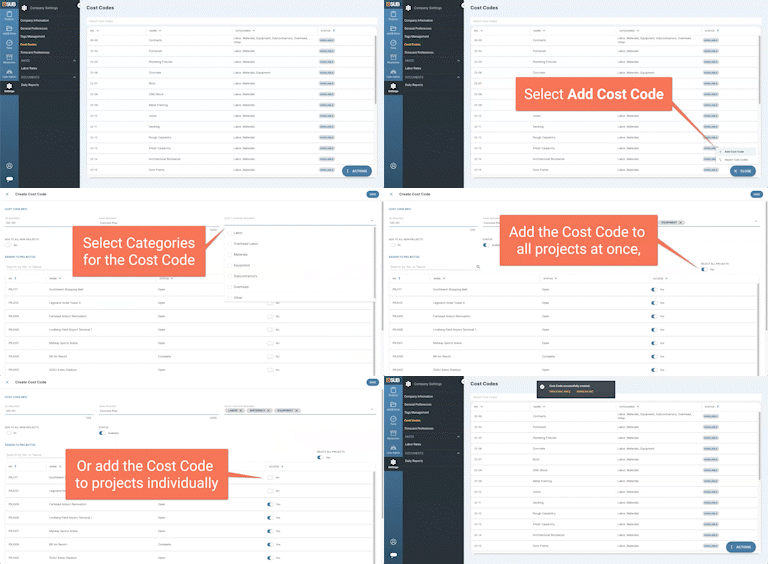
Create a Cost Code
From the Cost Codes log:
- Select Add Cost Code on the action button
- Enter a unique No. and Name, and select at least one category
- Assign the Cost Code to projects as desired
- Select Save
Edit a Cost Code
From the Cost Codes log:
- Select the Cost Code to view it, then select Edit
- Make changes as desired, then select Save
| The Cost Code number cannot be changed after it is created. Its name and its categories can. If a number is wrong, delete or make the status unavailable for that Cost Code and create a new one. |
Delete a Cost Code
From the Cost Codes log:
- Select the Cost Code to view it, then select Delete
A Cost Code that has already been added to a project cannot be deleted. Make it Unavailable instead, which is covered in Change a Cost Code Status.
Assign a Cost Code to Projects
User Personas: Admin
There are three ways to assign a Cost Code, and they answer different questions. From the Cost Codes list, select the Cost Code to view it, then select Edit:
- To add it to every project created from now on, toggle Add to All New Projects to Yes.
- To add it to every project that already exists, toggle Select All Projects to Yes.
- To choose individually, use the toggles under the Access column to add or remove the Cost Code from each project on the list.
|
Add to All New Projects applies from the moment a Cost Code is created and works forward only! A Cost Code created after a project already exists will not appear on that project on its own, no matter how that toggle is set. To add it to a project that is already running, either open the project's own Cost Codes list under Project Settings and toggle Use for Project to Yes, or edit the Cost Code on the company list and use the toggles under the Access column to assign it. |
Select Save when finished.
Change a Cost Code Status
User Personas: Admin
From the Cost Codes log:
- Select the Cost Code to view it, then select Edit
- Toggle the Status field to Available or Unavailable as needed
- Select Save
| Making a Cost Code Unavailable only affects your ability to assign it to projects from that point forward. An Unavailable Cost Code that was already assigned to a project, or already used on one, stays available to that project. |
For information on how Active/Inactive, and Available/Unavailable behave across the rest of eSUB Fusion, see Available and Unavailable Statuses.
Manage Project Cost Codes
User Personas: Project Manager
|
Renaming a Cost Code at the project level changes it for that project only! On the company cost code log, that cost code keeps its original name and shared number, and it is the company Cost Code that everything rolls up to. It is advised to keep project Cost Code names within the same scope of work as the company Cost Code they came from. A project name that describes different work than its company counterpart will still report against the company Cost Code, so your company-wide reporting may quietly stop meaning what it says. If you need a new project specific cost code, simply create a new cost code and set "Add to New Projects" to Off, and only assign the Cost Code to the project which it applies. Example: Company Cost Code 03-3000 Concrete Placement is assigned to a project. That rename works because the scope is the same: it is still concrete placement, just narrowed to a specific pour. Renaming 03-3000 to Temporary Fencing would not work. The costs would still land under 03-3000 Concrete Placement company-wide, and every cross-project comparison on that code would be wrong from then on. |
A project's own Cost Codes list is managed under Project Settings, on the project itself. It starts as a copy of the company list and can be adjusted for that job without affecting the company list or any other project.
For the full procedure, see Project Settings.
Permissions
Permission |
What it allows |
| Company - Cost Codes - General Permissions | View, create, import, edit, delete and assign company Cost Codes. |
| Change Status | Set a Cost Code to Available or Unavailable. |
If a user cannot see an action described in this article, review their Cost Codes permissions.
FAQ
Why can I not change a Cost Code number?
The number is fixed once the Cost Code is created. The name and the categories remain editable. If the number itself is wrong, delete the Cost Code if it has not been used, or make it Unavailable if it has, and create a replacement. See Edit a Cost Code.
Why were some of my Cost Codes not imported?
The usual causes are a duplicate number, a missing Number or Name, a special character other than a period or a hyphen, a value over 50 characters, no category enabled, or both Labor and Overhead Labor set on the same code. See the rules table in Import Cost Codes.
Why can I not delete a Cost Code?
Cost Codes that have been added to a project cannot be deleted. Make the Cost Code Unavailable instead, which stops it being assigned to anything new. See Change a Cost Code Status.
Does making a Cost Code Unavailable remove it from projects?
No. It only stops the Cost Code being assigned to projects going forward. Anywhere it is already assigned or already used, it keeps working. See Change a Cost Code Status.